
Panduan Instalasi
Pasang dan jalankan Lark AutomaDoc di workspace Lark Anda hanya dalam beberapa menit.
Prasyarat
Section titled “Prasyarat”Sebelum mulai, pastikan Anda memiliki:
- ✅ Akun Lark
- ✅ Minimal satu Lark Base yang sudah berisi data
Langkah instalasi
Section titled “Langkah instalasi”Langkah 1: Pasang AutomaDoc dari Lark App Store
Section titled “Langkah 1: Pasang AutomaDoc dari Lark App Store”-
Kunjungi halaman aplikasi AutomaDoc.
-
Pasang AutomaDoc untuk perusahaan Anda.
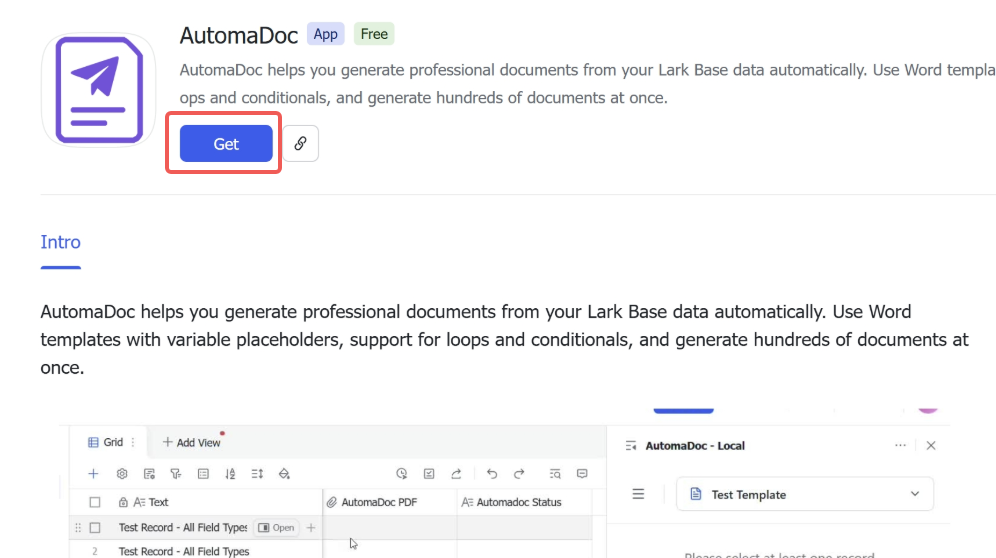
-
Pasang untuk semua pengguna (opsional).
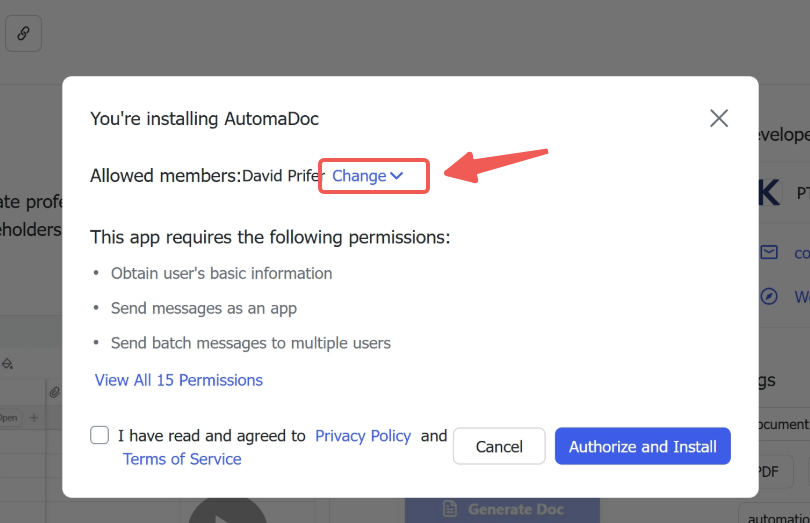
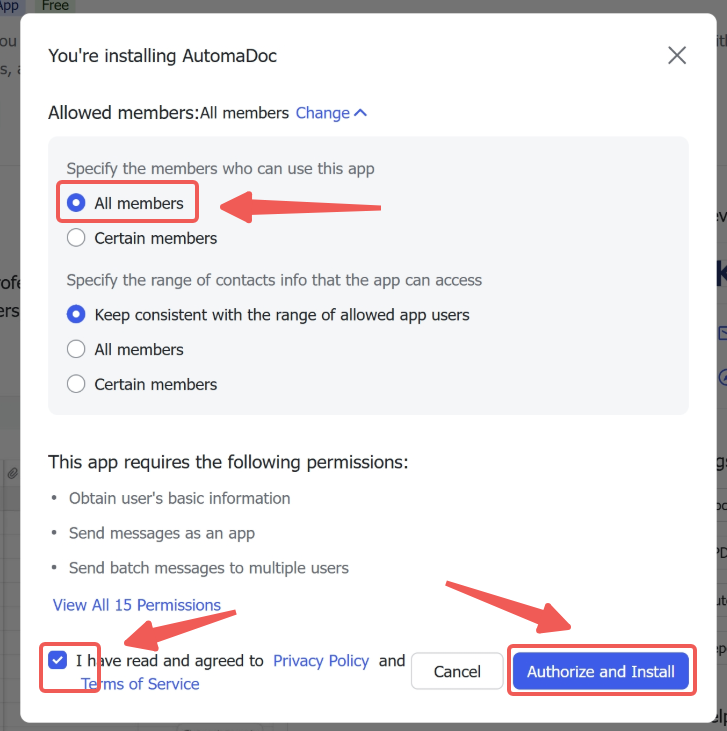
-
Jalankan aplikasinya.
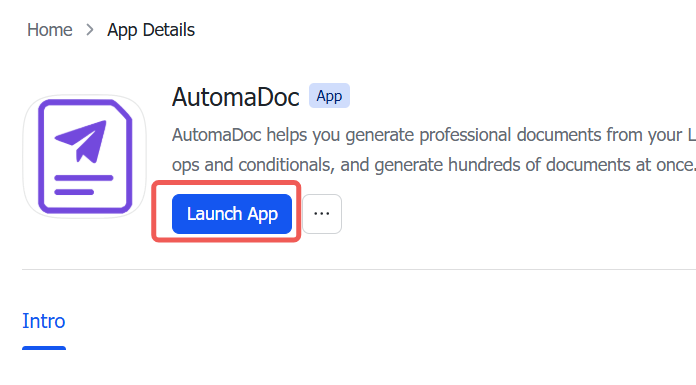
Langkah 2: Tambahkan ekstensi AutomaDoc dari Base
Section titled “Langkah 2: Tambahkan ekstensi AutomaDoc dari Base”-
Buka Lark Base Anda.
-
Klik tombol Extensions (ikon puzzle) pada toolbar.
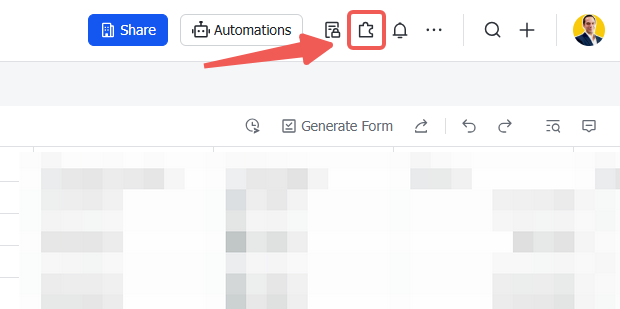
-
Klik Explore Extensions di bagian bawah panel.
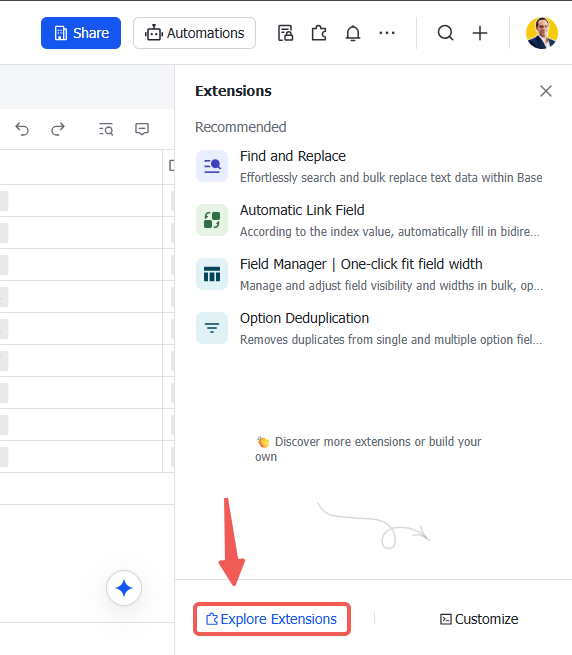
-
Cari AutomaDoc lalu klik untuk menambahkannya.
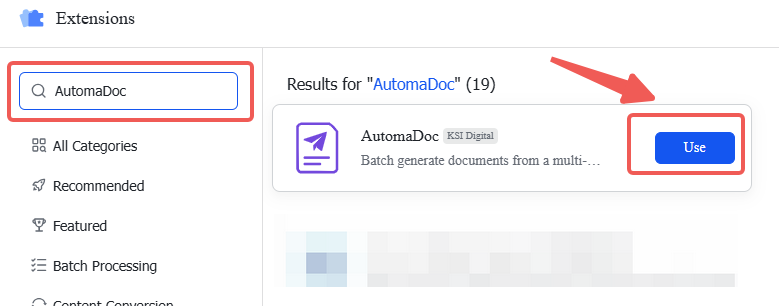
Langkah 3: Buka AutomaDoc
Section titled “Langkah 3: Buka AutomaDoc”-
Klik AutomaDoc yang baru dipasang.
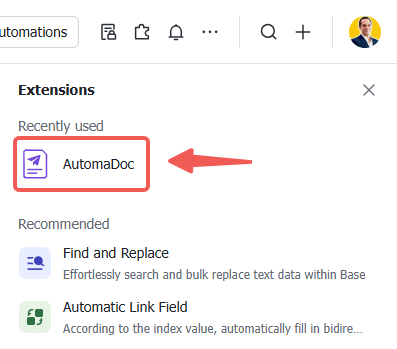
-
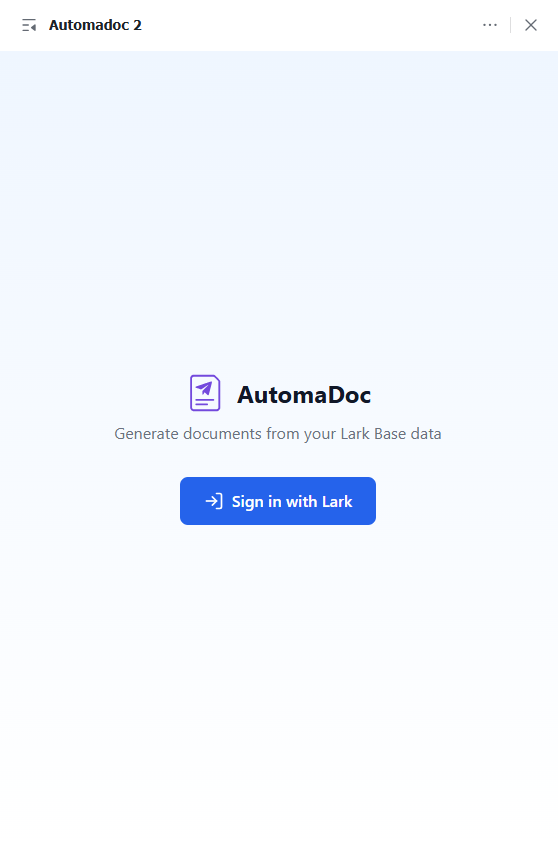
Masuk ke aplikasi.
Pemecahan masalah
Section titled “Pemecahan masalah”Ekstensi tidak mau dimuat
Section titled “Ekstensi tidak mau dimuat”Masalah: Ekstensi menampilkan layar kosong atau error.
Solusi:
- Bersihkan cache browser lalu muat ulang.
Tabel saya tidak muncul
Section titled “Tabel saya tidak muncul”Masalah: Tidak ada tabel yang tampil di ekstensi.
Solusi:
- Muat ulang halaman.
- Pastikan Base Anda memang berisi tabel yang ada datanya.
Error izin akses
Section titled “Error izin akses”Masalah: Muncul pesan “Access denied” atau error terkait izin.
Solusi:
- Pastikan akun Lark Anda punya akses ke Base tersebut.
- Hubungi admin workspace untuk meninjau izin aplikasi.
Tidak bisa mengunggah template
Section titled “Tidak bisa mengunggah template”Masalah: Unggahan template gagal.
Solusi:
- Pastikan file berformat
.docxyang valid (bukan.docatau format lain). - Perhatikan ukuran file — template yang sangat besar bisa gagal diunggah. Usahakan di bawah 10 MB.
- Pastikan Anda belum mencapai batas jumlah template (2 untuk Free, 10 untuk Pro).
Langkah berikutnya
Section titled “Langkah berikutnya”✅ Instalasi selesai! Sekarang Anda siap untuk:
- 👉 Memulai — pelajari dasar-dasarnya
- 👉 Sintaks template — kuasai sintaks placeholder
- 👉 Membuat dokumen — mulai otomatisasi